


Social media platforms typically launch… Threads burst onto the scene, elbowing its way into the social media lineup like a cousin who shows up uninvited but still brings dessert. When it first rolled out in 2023, everyone rushed in out of pure curiosity.
Since then, Threads has grown up. It’s no longer the new kid we side-eye (we have Bluesky for that now). Brands are treating it seriously, audiences are actually engaging, and, finally, analytics tools are starting to catch up.
This makes the perfect moment to dive into how Threads analytics work and what you can actually do with the data (even if you don’t have a business Threads account).
In this article, we’re going to explain how analytics for Threads work, what metrics you should track, what exactly they are telling you, and what tools you can use.
Table of Contents
Does Threads Have Analytics?
Yes, Threads has native analytics, but don’t expect the full analytics buffet just yet, like its sibling platforms under Meta (Instagram and Facebook). You’ll find standard metrics such as reach, post engagement (likes, replies, reposts), follower growth, and views.
Let us just remind you that initially, when Threads launched in July 2023, analytics were very modest (basically “how many people saw this vs. how many people liked it”). Over time, Meta has gradually expanded that offering.
For example, as of August 2024, Meta announced a new “Insights” page on Threads for desktop users, including follower demographics (age, gender, and location), views, and interactions. Later, this update was also available for the mobile app.
Here are two of the more recent analytics additions worth mentioning:
- In July 2025, Meta upgraded Threads’ Insights to include new dashboards where creators can track performance over time (7-90 days) and see where content was discovered, e.g., outside the Threads app (via Instagram or Facebook).
- In May 2025, Threads rolled out a helpful analytics boost: you can now track how your links perform, whether they’re sitting in your bio or included in posts, so you finally see how much traffic you’re driving beyond the app itself. On top of that, Threads upgraded its Insights with a weekly recap that compares your posts, views, new followers, and replies week over week, plus it added personalized tips to help you spot new ways to engage your community and keep your audience active.
So, as we can see, Threads is constantly improving its analytics; it lacks some of the key metrics that more mature social listening and analytics platforms typically provide:
- There’s no built-in sentiment analysis (i.e., you can’t automatically gauge positive/negative tone of replies/posts).
- It doesn’t provide full Share of Voice (SOV) metrics; you won’t see automatically how your brand’s share on Threads compares to competitors.
Can you see insights on Threads?
Yes, Threads does offer native insights, and they’ve improved a lot since launch. You can see metrics like post engagement, reach, views, follower growth, and even link clicks from your bio or posts, but only after you gain 100 followers.
For example, we don’t have 100 followers on Threads yet (as of November 20th, 2025), so here’s what we see.

Now the question is, what do you do while you’re waiting for the magic number to appear, sitting all alone in the dark? Well, you’ll need a social listening platform to see what’s happening on Threads and who’s mentioning your brand.
Though once you hit the milestone, Threads also provides weekly recaps that compare your activity week over week, plus personalized tips to help you boost engagement.
However, it’s still fairly basic: you won’t find sentiment analysis, Share of Voice, or deeper competitor insights without using an external analytics or social listening tool.
How to See Analytics on Threads?
So, there are basically only two ways you could see analytics on Threads: the native way and through a third-party listening tool.
The Native Way
Unlike Instagram and Facebook, Threads still lives in its own little bubble. There’s neither classic Meta Business Suite integration nor an all-in-one content hub.
Instead, Threads gives you two native paths to access insights:
1. Inside the Threads App (Mobile & Web)
This is where everyday users, creators, and brands see their analytics as of last year, when Threads rolled out its Insights dashboard.
You can get there by:
- Clicking on the Menu icon at the bottom left corner of Threads.
- Choose Insights.
- And you will see three segments: Views, Interactions, and Followers.
- Set a time range.
- That will enable you to see Views by followers and non-followers, Interaction with your content (including likes, reposts, replies, and quotes), and demographics (age, location, gender).
What you can see:
- Post-level insights: likes, replies, reposts/quotes, views
- Profile analytics: total views (7/14/30/90 days), follower growth
- Link clicks (bio + post links)
- View sources: Feed, Profile, Search, Instagram/Facebook
- Weekly recaps with week-over-week comparisons
- Personalized tips to help you boost engagement
What you can’t see yet:
- Full audience demographics (rollout incomplete)
- Share of Voice
- Audience Sentiment
- Competitor comparisons
- Custom date ranges
- Reach breakdowns like Instagram/Facebook offer
Threads’ native analytics are improving, but they aren’t marketing-suite level.
2. The Developer Way (Threads API)
This is Meta’s official Threads API, used by third-party tools and developers to access deeper insights programmatically. The API supports:
- Post data: views, interactions (likes, replies, reposts, quotes, shares), link clicks
- User metrics: follower count, follower demographics (country, city, age, gender)
- Period (timeframe: since or until)
- Publishing and scheduling
- Managing replies
- Topic tags and location tags
Note: Follower count and demographics are not available if your Threads account is not linked to your Instagram account.
Important: Threads API insights do not appear in Meta Business Suite; they are only accessible through tools that integrate with the API or custom developer environments.
The Social Listening Way
If Threads’ native analytics feel a bit… skinny, the social listening route is where the real insights live.
With Mentionlytics, you can track brand mentions, competitors, sentiment, emerging topics, and link your Threads performance to the bigger picture.
Here’s the quick 5-step process to unlock full Threads intelligence:
1. Start Your Free Trial & Add Your Keywords
Sign up for Mentionlytics and drop in the keywords you want to track. It can be your brand name, product name, hashtag, campaign terms, or even your competitors.
This tells the system exactly what to listen for across Threads and beyond.

2. Connect Your Threads Account
Authorize your Threads profile inside Mentionlytics. This unlocks richer analytics, authentic data, and smoother tracking of your account-level and post-level performance.
To gather Threads mentions, you need to authorize your Threads profile so Mentionlytics can start scanning this platform for the keywords you want. To do so, follow these steps:
- Go to Settings in the left menu.
- Click Account Configuration.
- Scroll to locate “Add Social Profile or Location”.
- Select the Tracker you want that social profile to be inserted in.
- Select from the drop-down menu in “Type of Media” the option “Threads Account”.
- Click the green button that’ll appear below.
- You’ll be redirected to Threads to consent.
- After that, you’ll be automatically redirected back to the Mentionlytics overview dashboard.
Mission accomplished!
3. Let Mentionlytics Gather Mentions
Now, to start collecting mentions, you need to go to the keyword(s) you want to fetch Threads’ mentions for and click “Edit”. Then, you need to enable Threads and hit update.
Sit back while Mentionlytics works in the background, collecting every relevant mention: posts, replies, quotes, reposts, and conversations referring to your keywords. No scrolling marathons, no detective work.
Everything will automatically appear on your dashboard. If you want to select only the Threads data, all you have to do is filter for Threads.

4. Analyze the Data
And now we come to the most interesting part. Mentionlytics transforms raw Threads data into structured insights: sentiment, trending themes, influencers, conversation spikes, and more.
Since you have a full metrics section below, no need to dive too deep here, but this is where the heavy lifting lives.
5. Share Reports Like a Pro
Export clean, polished reports showing your Threads presence, key insights, and how your audience feels about your brand.
Perfect for strategy updates, team meetings, client reporting, or just proving you’re the smartest person at the table.
Vital Metrics to Track on Threads & How to Interpret Them
Threads may be young, but the metrics you track now will shape your entire future strategy on the platform. Here are the 8 most important data points, a mix of what Threads offers natively and what Mentionlytics unlocks on top.
1. Reach (Views)
Reach shows how many people saw your thread, meaning how far the algorithm carried your content.
Why It Matters & How to Use It
Reach is your distribution health check. Tracking reach across different post types (text-only, visuals, conversational threads) helps you understand what the algorithm prefers, and what your audience actually stops to look at.
2. Engagement (Likes, Replies, Reposts, Quotes)
Engagement tells you how your audience interacts with your content once they see it. It gives you the answer to how well your content performs. You can even adjust your posting time if you spot a pattern.
Why It Matters & How to Use It
Engagement rate reveals content resonance. Monitor which topics drive replies or quotes to uncover the themes your audience wants to discuss, which is crucial for shaping a long-term content strategy on Threads. You can easily find out what’s working and what’s not.
3. Link Clicks
Clicks show how many users followed your call-to-action and left the feed to visit your site, product page, or campaign asset. These metrics are one of the most important for measuring how efficient your marketing strategy is.
Why It Matters & How to Use It
Link clicks measure intent, not just interest. Tracking them helps refine your messaging, CTA placement, and what offers actually move people off-platform. It’s also another way to check whether you’re at the right platform. Are your potential customers on Threads, or should you consider other platforms, like Bluesky Social?
4. Follower Growth
The clearest indicator of long-term traction: how many new people decided to stick around.
Why It Matters & How to Use It
Follower growth helps you connect posting patterns to audience expansion. Watch for spikes linked to specific posts or conversations. These highlight what makes your brand follow-worthy.
5. Brand Mentions (via Mentionlytics)
These are all public references to your brand, products, hashtags, or campaigns on Threads. And most importantly, they don’t necessarily have to be tagged.
Why It Matters & How to Use It
Brand mentions help you see how often people talk about you, and in what context. Tracking them allows you to respond faster, spot feedback trends, and identify organic ambassadors (aka influencers) early. And don’t forget that LLMs also like to check this metric.
6. Sentiment and Emotion Analysis (via Mentionlytics)
Sentiment and emotion analysis shows whether the conversation around your brand is positive, neutral, or negative.

Example of sentiment and emotion analysis for Ryanair in Mentionlytics.
Why It Matters & How to Use It
Sentiment and emotion analysis help you understand how people feel, not just what they say. Use it to fine-tune messaging, catch early signs of dissatisfaction, or double down on what’s working emotionally.
7. Mention Volume Comparison by Month/Week/Day (via Mentionlytics)
This metric shows how your brand’s presence compares to competitors in the same space or conversation.
Why It Matters & How to Use It
It helps you measure visibility in real time. If your volume of mentions dips, it’s a sign competitors are pushing harder, and you may need to accelerate your posting or engagement strategy.
8. Keyword Trends and Image Analysis Entities (via Mentionlytics)
Keyword cloud shows which themes, hashtags, and keywords are gaining traction around your brand or industry, while Image Analysis shows you the recurring topics on the images related to your brand.

Why It Matters & How to Use It
Topic trends, keywords, hashtags, and image analysis reveal demand directly from your audience. Tracking rising conversations helps you jump into relevant threads early and shape content your audience actually wants in this new platform.
How to Create A Threads Analytics Dashboard?
Before you build a dashboard, start with the one big question: Why are you tracking Threads in the first place?
Do you want to understand what content resonates? Monitor brand reputation? Keep an eye on competitors? Or simply see whether all your new Threads experiments are paying off?
Once you know your reason, creating a custom dashboard becomes much easier, because you’re not just throwing charts onto a screen. You’re building a workspace that answers the questions that matter most to you.
Here’s how you can set up a clean, powerful Threads dashboard inside Mentionlytics:
1. Choose the Metrics That Matter to You
First of all, you need to create a new dashboard by clicking on the three dots in the right corner of your Overview dashboard and choosing + Create New.

Once you do that, you will be able to customize the layout of your dashboard by choosing sections and the design. You can always add more sections or rearrange the existing ones.

When creating your unique (custom) dashboard, you can hand-pick exactly which Threads metrics you want to track.
All you need to do is hover over the Section and click the Plus icon (+) that will appear. A pop-up with components will appear on your screen.
Make sure to choose the metrics that you want for Threads. It could be any of the following:
- Emotion analysis
- Sentiment analysis
- Brand mentions
- Media share
- Mention volume
- Image analysis
- Trackers visualization
- Keyword cloud
On top of that, your dashboard can contain a list of mentions ordered by date.

2. Add Components for Each Metric
For every metric you select, simply choose a component, graphs, time-series charts, pie charts, or counters to visualize the data in a way that makes sense for your style of analysis.

Want to compare Threads mentions against Instagram or X? Use Media Share.
Want a sentiment chart right next to brand mentions? Add both.
3. Organize Your Dashboard Layout
Your dashboard can have the most unique or the most ordinary layout. It all depends on what works best for you. Some users like an “at-a-glance” top row (Mentions, Media share, Sentiment analysis). Others prefer a chronological story:
- Mentions
- Sentiment
- Keywords
- Media share
And more. There’s no wrong way, just the way that helps you understand Threads quickly.
4. Filter Your Data for Deeper Insight
Use filters within every component to view Threads data by:
- Emotion
- Sentiment
- Content type
- Tracker type
- Source (Threads only, or Threads + cross-platform view)
- Tags
This is where your dashboard turns into a strategic tool instead of just a bunch of charts.

5. Save, Export, or Share Your Dashboard
Once it’s built, you can revisit your Threads dashboard anytime, export charts for reporting, or share it with teammates to keep everyone aligned.
A Small Note Before You Dive In: Custom dashboards are part of Mentionlytics’ paid plans, so you won’t see this feature inside the free trial. But don’t worry, we can walk through it together inside your account once you upgrade, so you can learn this part of the platform step-by-step.
3 Top Threads Analytics Tools to Try
Whether you’re testing the waters on Threads or already posting like a seasoned micro-blogger, choosing the right analytics tool makes all the difference.
So, it’s testing time, and here are my recommendations.
1. Mentionlytics: The Complete Threads Intelligence Hub
If Threads’ native insights feel like reading headlines without the article, Mentionlytics gives you the whole story.
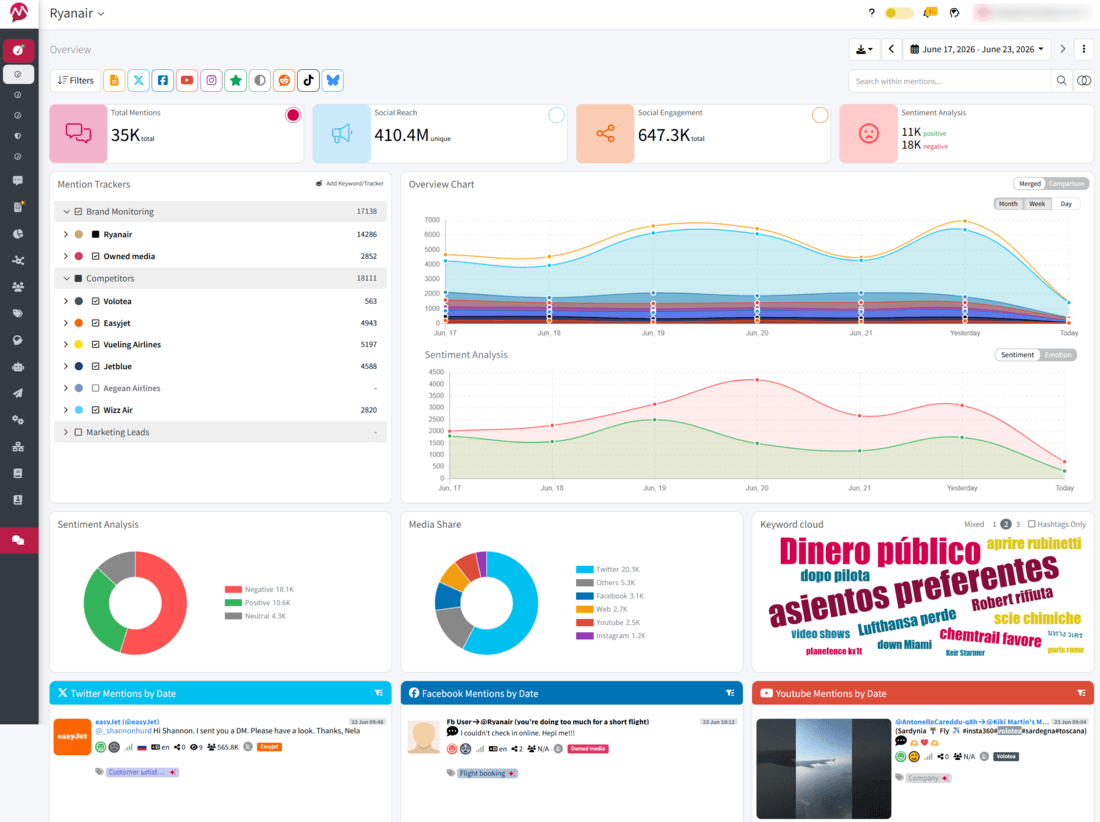
By pulling data directly from the Threads API and combining it with advanced social listening, Mentionlytics offers a complete view of your brand’s performance.
How It Can Help You:
- Tracks every brand mention across Threads (and the rest of the internet); posts, replies, reposts, and keyword-triggered conversations.
- Runs multilingual sentiment analysis with 96% accuracy, even understanding sarcasm, irony, and emotional context.
- Measures Share of Voice across your competitors to tell you who’s leading the conversation, and who’s falling behind.
- Surfaces emerging topic trends and conversation clusters so you always know what your audience cares about on Threads.
- Sends AI-powered real-time alerts when something unusual happens, spikes, crises, troll attacks, or suspicious activity.
- Provides one dashboard for all your brand mentions that you can easily customize to fit your needs.
- Builds customizable dashboards you can tailor to every metric you care about on Threads.
- Offers clean, shareable reports for clients, stakeholders, or execs who want the headline + the “so what?”
Best for: brands, agencies, and marketers who want actionable insights, not just numbers.
2. Threads Native Analytics: The Essential Basics
Threads’ own analytics give you a simple, clean overview of how your content performs without leaving the app. It’s the quickest way to see what’s resonating, what’s silently flopping, and how your audience is growing over time, all right inside the Threads interface.

Source: Threads official post
The Insights dashboard makes navigation easier, and weekly recaps help you understand week-over-week performance. It’s simple, clean, and perfect when you just need a quick read on how your posts are doing.
How It Can Help You:
- Shows essential metrics like reach, likes, reposts, replies, quotes, link clicks, and follower growth.
- Breaks down where your views came from (Feed, Search, Profile, IG/FB surfaces).
- Delivers weekly performance recaps for quick “what worked this week” insights.
- Helps creators and small brands track early traction without any setup or external tools.
Best for: creators and smaller brands who want fast, no-setup insights directly inside Threads.
3. Buffer: The Handy Scheduling Companion
Buffer brings scheduling superpowers to Threads, making it easy to plan, publish, and maintain a consistent posting rhythm, even on busy weeks. While its analytics aren’t as deep as those of dedicated listening tools, it provides clear, useful engagement trends to help you improve your content strategy.

With Buffer, you get the convenience of managing multiple platforms in one place, plus enough data to spot which posts are gaining traction on Threads.
How It Can Help You:
- Lets you schedule Threads posts in advance for consistent publishing.
- Shows lightweight analytics: engagement per post, reach estimates, and basic comparisons.
- Helps you identify simple patterns, like best times to post, high-performing content, or format trends.
- Keeps all your channels in one workflow (Threads, Instagram, Facebook, LinkedIn, etc.).
Best for: small teams and solo creators who want scheduling + lightweight analytics in one place.
Try a Threads Analytics Tool for Free Now
You already know what Threads’ built-in analytics can (and can’t) do, so if you’re curious whether there’s a smarter, deeper way to track your brand on this fast-growing platform, you’re absolutely right to explore.
Give Mentionlytics a spin with a free 14-day trial (no credit card required) and unlock the kind of Threads insights that actually help you grow: richer analytics, sentiment, brand mentions, competitor intel, and your very own dashboard served fresh on your plate.
Go on… your future Threads strategy will thank you.
FAQ
Does Instagram Threads have analytics?
Yes, Threads offers native analytics on both mobile and web, including reach, engagement, follower growth, and link clicks. For deeper analytics, such as sentiment or Share of Voice, you’ll need a social listening tool.
How to check Threads analytics?
Open your Threads profile, tap the menu in the bottom left corner, choose Insights, and there you go. You can also use third-party tools for richer, API-powered analytics.
Is there analytics for Threads?
Yes. Threads provides basic in-app analytics, and brands can access advanced insights through the official Threads API using tools like Mentionlytics.
How to view Threads analytics?
Go to your profile on Threads and tap “Insights” to view reach, engagement, and weekly recaps. For in-depth analysis and reporting, connect your account to a social listening platform.

